
If you only want a node on your own server, you do not need to start by learning a configuration format or buying a domain. Nodebuf Server Manager installs sing-box on Linux and generates connection parameters for you. Afterwards, use its web panel or the nb command to manage it.
Connecting the manager to Nodebuf is optional. A connection lets you monitor several servers together and generate subscriptions using your templates, configuration prefixes and routing rules. The local panel and command line work without a Nodebuf website account.
The core feature guide began with version 0.4.0; installation and terminal instructions now cover 0.7.2, with automatic public IP detection, a generated administrator password and grouped menus. Website integration, the installer and the website links below now use the production domain nodebuf.com. Your local panel administrator and your Nodebuf website account remain separate accounts.
First, know which panel you are opening
| Entry point | Address | What it does |
|---|---|---|
| Local server panel | http://YOUR_SERVER_PUBLIC_IP:39090, or the HTTPS address you configure |
Nodes, certificates, diagnostics, traffic limits, backups and local service settings |
| Nodebuf My servers | nodebuf.com/user/servers | Monitoring, authorized node operations and website subscription settings after pairing |
Run the installer on your Linux server, not on your everyday computer. For a rented VPS, use that VPS's terminal. You can then open its panel from your computer's browser.
127.0.0.1 always means the device currently using it. Sending a laptop's http://127.0.0.1:39090 address to a phone does not give the phone access to the VPS. A normal installation uses the server's public IP and panel port directly. A loopback address on your computer applies when you deliberately set up local forwarding.
1. Install the manager
Supported systems are Debian 12/13, Ubuntu 22.04/24.04 and compatible releases, on Linux amd64 or arm64, with systemd and root access. Ordinary application containers may lack the kernel permissions for traffic accounting and limits even when their user is named root. A full VPS or virtual machine is the simpler starting point.
Open a root terminal on your server and run the command as shown. No edits are needed:
curl -fsSLo singbox.sh https://nodebuf.com/singbox.sh && bash singbox.sh install
The installer detects this server’s public IP automatically, preferring IPv4 and using IPv6 on IPv6-only servers. A random administrator password is generated automatically. Login details and usage appear only after installation succeeds. Only if detection fails will it ask for the address; you can also retry with --server YOUR_OWN_PUBLIC_IP_OR_DOMAIN. Use this override for a specific egress address or NAT port mapping; the installer cannot configure your provider’s security group or port forwarding. If you are signed in as a regular sudo user, run sudo -i first, then use the command above.
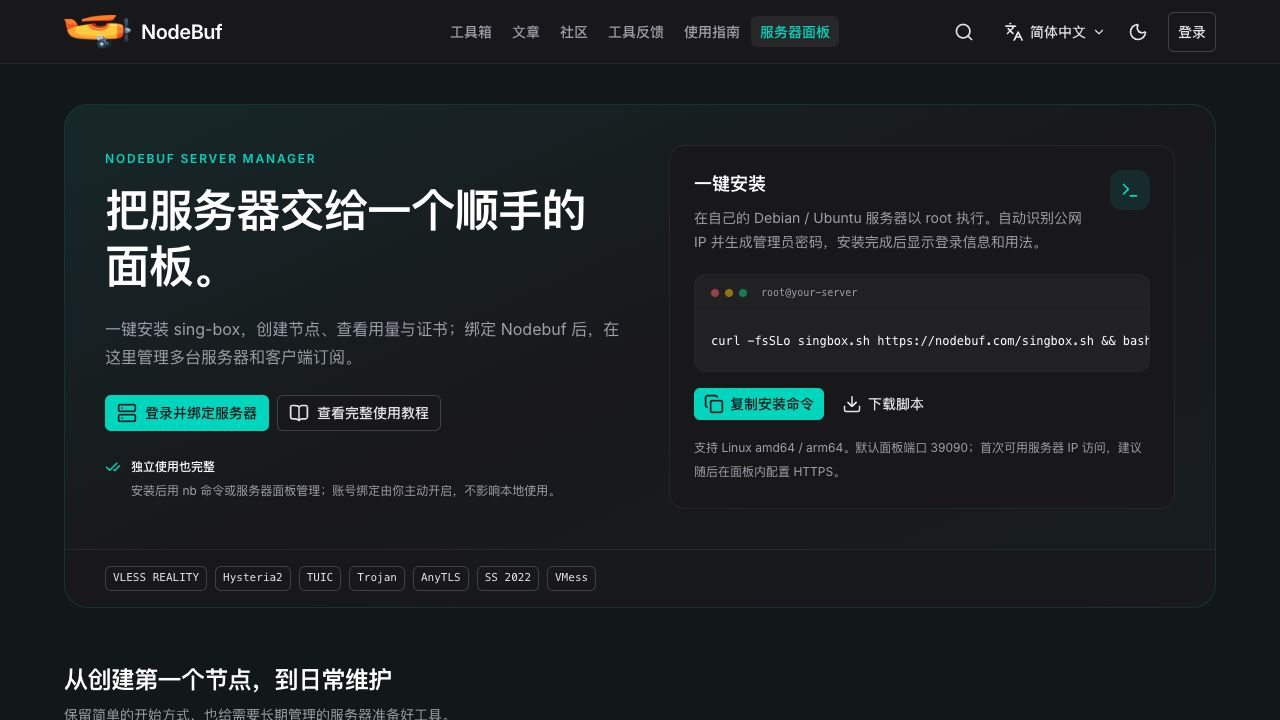
Installation entry. Management screenshots in this guide use demonstration data and contain no real customer node passwords, pairing codes or subscription keys.
The command downloads a file before running it. Avoid changing it to curl ... | bash: keep the complete installation result; afterwards, use the nb menu. Custom passwords can also be provided securely through a terminal or standard input.
The installer downloads and verifies the manager and pinned sing-box core, then creates separate services and data directories. It stops when it finds a conflicting managed directory, nb command, service or panel port. It does not adopt an older proxy service on the machine.
The installer generates a strong administrator password and displays it after success. Save it; use nb password later to change it. Custom passwords may be 8 characters or longer. Keep the panel address and account shown at the end. The default is TCP port 39090. To choose another panel port, add an option such as --port 39091; always use the actual address printed by the installer.
The installation finished, but the panel will not open
First check that the address contains your server's public IP. Then check both places that can block a port:
- Your hosting provider's security group or network firewall.
- The operating system firewall, such as UFW, firewalld or nftables.
The manager does not edit provider security groups or replace your firewall allow rules. Panel access needs TCP on its actual panel port. Run nb panel to see the saved address, or nb status to inspect service status.
An upgrade preserves an older installation's access mode. It does not silently expose a panel that was previously bound only to loopback. If you want direct IP access, explicitly switch using the matching installer:
bash singbox.sh access --public-http --server YOUR_PUBLIC_IP
A simple note about HTTP
The initial IP address entry uses HTTP. This is convenient for setup, but it does not encrypt your administrator password, session or node information. Configure HTTPS soon under Service and security → Domain and HTTPS. Until then, use a trusted network and, where practical, restrict port 39090 to your own IP.
You can start creating nodes without owning a domain. Whether a node needs a domain and whether its management panel uses HTTPS are separate questions. Users familiar with SSH can also use encrypted forwarding; it is an optional access method rather than a prerequisite for creating a first node.
Start with the terminal menu
Run nb after installation. Choose a numbered item for node management, adding a node, service controls or maintenance. Enter 0 to return from a submenu, or exit from the main menu.
- To get a node link, open node management, select a node and choose its details, URI or complete client configuration. Prefer complete configurations for self-signed certificates so certificate trust is retained.
- To add a node, choose a protocol or transport preset. Connection credentials, paths and an available port are prepared for you. REALITY needs no domain you own; domain-based certificate issuance requires your explicit confirmation.
- To check the service, choose status or run
nb status. It shows running/stopped text, node counts and the panel address, with colored status indicators on suitable terminals. - Use maintenance,
nb panelornb passwordfor the panel address or a password change. nb uninstallremoves the program while retaining private data by default.nb uninstall --purgerequires explicit terminal confirmation to remove retained data as well.
For an existing installation, upgrade without uninstalling or initializing it again:
curl -fsSLo singbox.sh https://nodebuf.com/singbox.sh && bash singbox.sh upgrade
An upgrade keeps the administrator password, nodes, subscriptions and historical traffic. It does not generate another initial password.
2. Create your first node
Sign in to your local panel, open the nodes page and select Add node. For a first setup, keep the default VLESS REALITY preset. It does not require a domain you own. The manager generates a port, UUID, key material and other required parameters.
Review the name, public connection address and listening port. Advanced parameters are collapsed initially; leave the generated values unless you have a reason to change them. Before applying a node, the manager runs a real sing-box configuration check. It keeps the previous configuration if validation or startup fails and explains the failure.
For separate phone and laptop limits, create separate nodes, for example “My phone” and “My laptop.” Accounting is per independent listening port. It does not provide separate billing for several UUIDs sharing one port.
Can Hysteria2 or TUIC work without a domain?
Yes. TLS presets such as Hysteria2, TUIC, Trojan and AnyTLS can use a server IP. The manager creates a self-signed certificate covering that IP, and a complete client configuration carries the public certificate needed to establish trust. The goal is to trust the correct certificate, rather than turn certificate verification off.
After creating one of these nodes, prefer Copy complete client configuration or download the sing-box configuration, then import it into a compatible client. Supported Mihomo output retains a fixed certificate fingerprint. Do not remove a certificate or fingerprint and leave only a “skip verification” setting to make an import appear to work.
A certificate trusted by the client's system CA store is often easier when you need portable URIs across many clients. Self-signed and private CA trust do not have a universal URI representation across all protocols. The manager offers a separate Hysteria2 fingerprint compatibility URI, but both the final client and any converter in the middle must preserve and actually verify its fingerprint. Use the complete configuration when you are unsure.
If you choose the domain and automatic certificate option, enter a domain you control, check DNS and agree to the CA terms. HTTP-01 needs the domain to point correctly at the server, with public TCP port 80 reachable and not occupied by another service. DNS-01 can verify domain ownership using an appropriately scoped Cloudflare API Token without opening port 80. A failed issuance explains the reason; it does not silently switch certificate methods.
Managed CA certificates renew automatically when eligible. Renewal still depends on the required DNS, port or API permissions remaining available. Self-signed certificates are not automatically renewed through a public CA. If their certificate, IP or verification name changes, import the updated client configuration.
Do not forget the node's own firewall rule
An accessible panel does not prove a node port is open. A Hysteria2 node on 18443 generally needs UDP 18443 allowed in both the hosting security group and the operating system firewall. Opening TCP alone is insufficient. TUIC and VMess QUIC also need the appropriate UDP rules; TCP presets such as REALITY need their TCP port.
If a configuration imports but cannot connect, check the protocol, port and TCP/UDP rules before assuming conversion failed. A successful server-side diagnostic only checks its own test path. It cannot prove that public inbound access from your phone's network works.
3. Traffic, quotas, speed limits and expiry
The node editor and traffic page show accumulated upload/download, today's traffic and this month's traffic. Set daily and monthly quotas, upload/download limits and an expiry time. A quota of 0 means unlimited. An empty expiry means the node has no expiry.
The website My servers editor uses GiB: 1 GiB = 1,073,741,824 bytes. This differs from the decimal 1 GB = 1,000,000,000 bytes often used by providers. Speed limits use Mbps, not MB/s: 8 Mbps is roughly 1 MB/s before protocol overhead.
The server samples port traffic about every five seconds, including protocol overhead. Quota enforcement, expiry and policy changes can have a short delay and a small amount of overshoot. This is not carrier-grade, byte-exact billing.
Daily and monthly windows follow the manager's accounting timezone, which may differ from your computer's timezone. Once traffic exists, that timezone is locked to prevent repeated quota resets. Restarting the core does not erase the traffic ledger or quota state.
The local panel can stop a node or throttle it after a quota is reached. Website node quotas are not whole-machine bandwidth limits and do not account for unrelated server processes. Upload policing can drop packets, so actual TCP throughput may be lower than the configured maximum. Download shaping also sets a ceiling rather than guaranteeing bandwidth.
4. Connect the server to Nodebuf
At this point you already have an independent working manager. Sign in to My servers when you want monitoring across machines or subscriptions using website resources.
Step A: create a code on the website
Select Connect a server, choose permissions and generate a single-use code. It is valid for ten minutes. Keep it out of public groups: it represents authorization from your website account.
| Permission | What it allows | Required? |
|---|---|---|
| Monitoring | Status, core state, traffic, resource usage, certificate expiry and redacted node information | Yes |
| Node management | Create nodes, change their state, name, quotas, speed limits and expiry | Your choice |
| Subscription sync | Upload client node configuration for encrypted website storage and subscription generation | Your choice |
Subscription sync includes client connection credentials. UUIDs, passwords and client public keys/certificates are needed to import nodes and are private information. Server TLS private keys, REALITY private keys, SSH passwords, panel administrator passwords and website session cookies are excluded.
Step B: confirm on your own server
Open Website connection in the local panel, paste the code and enter a recognizable server name. Confirm the permissions allowed locally before pairing. A website checkbox cannot bypass your local consent.
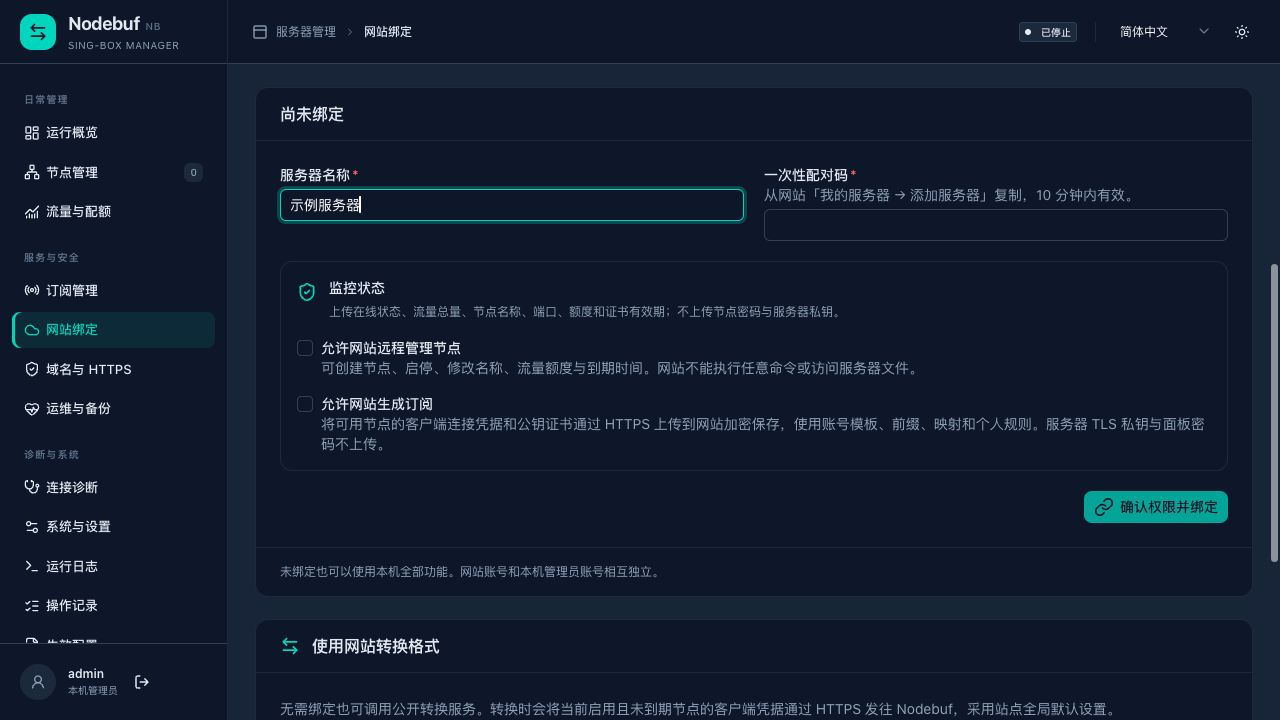
Local permission confirmation. Enable only what you need. Website credentials and panel administrator passwords are not synchronized.
The command line works too. First generate a code on the website, then run the command below, paste the code and press Enter. Reading from standard input keeps the code out of this command's history:
nb bind --code-stdin --name 'My server'
To allow remote node management and website subscriptions, explicitly add their options:
nb bind --code-stdin --name 'My server' --allow-manage --allow-subscribe
The form nb bind YOUR_ONE_USE_PAIRING_CODE --name 'My server' is also supported, but places the code in shell history. Prefer standard input for regular use.
Step C: refresh the website
Return to My servers and refresh. Normal agent reports arrive about every fifteen seconds; the website refreshes status about every thirty seconds while the page is visible. Pairing requires no extra inbound port: the manager initiates requests to fixed HTTPS website endpoints.
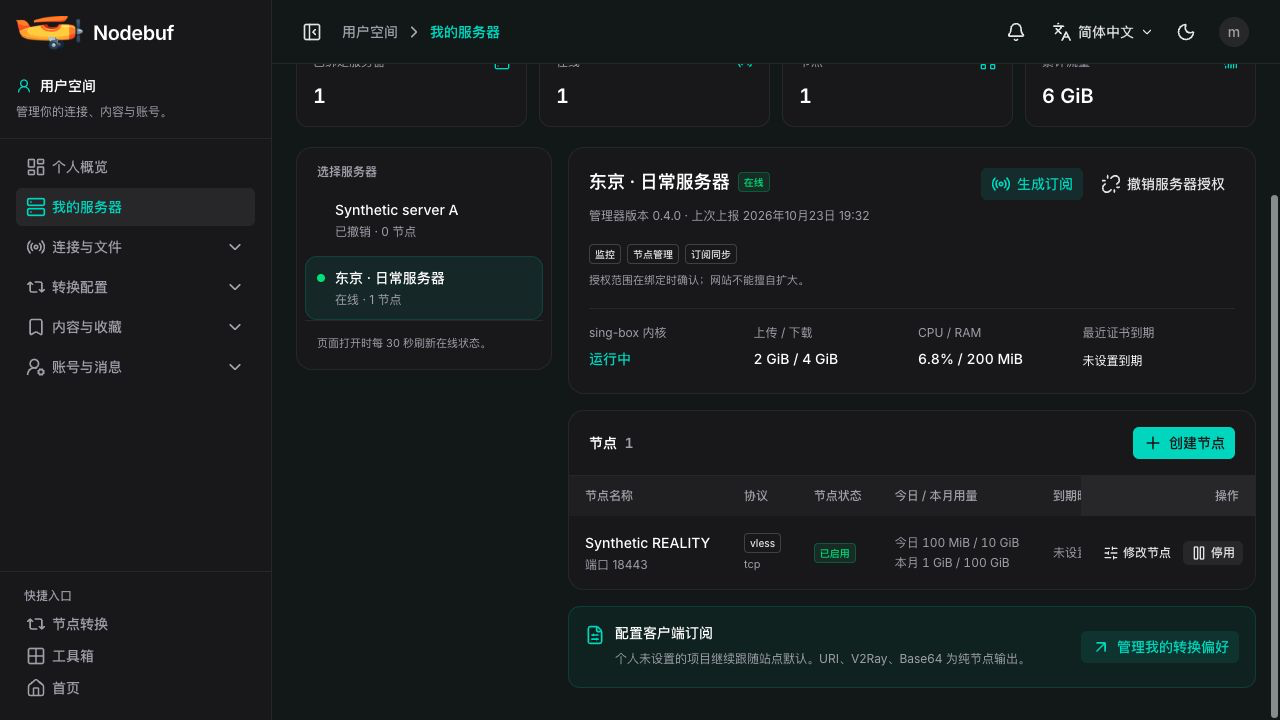
Multi-server interface using demonstration status and nodes.
You can pause originally granted permissions locally and restore them within the original grant. Adding a permission that was not granted during pairing requires pairing again. Pausing subscription permission invalidates the existing website subscription key; after restoring it, generate a new URL on the website and update clients.
You can disconnect locally or revoke the connection from the website. This stops subsequent website access and control; it does not delete local nodes. It also cannot erase configuration already imported into someone else's client. Disable a node or change its credentials when you need to stop actual connections.
If changing your website password or other account security information makes a binding invalid, revoke the old connection on the website, disconnect locally and pair again. Repeatedly refreshing the old subscription key cannot restore an invalid account authorization.
5. Follow the result of a remote operation
With node management permission, the website can create supported quick presets and change existing nodes' state, quotas, speed limits and expiry. Detailed transport, certificate and camouflage settings remain in the local panel.
The website does not send arbitrary shell commands and needs no SSH account. The server generates connection passwords and key material locally; remote forms do not supply private keys.
Remote changes are asynchronous. A successful submission means the operation was queued, not that the node has already changed. Check Latest operation:
- Queued: the manager has not picked it up; it can be cancelled.
- Running: the manager has received it and may be validating or saving configuration. Wait for the outcome. An operation that has already started cannot be assumed reversible by cancellation.
- Succeeded: a success receipt arrived. Check the refreshed node state too.
- Failed or expired: read the specific reason. Port conflicts, changed node revisions, missing certificate setup and invalid configuration need different responses.
If settings changed, refresh and review them before submitting again. Avoid repeated clicks to overwrite a newer version. If the server is offline, check its local connection state and network first. Only one unfinished operation is handled at a time, reducing conflicting edits from several tabs.
6. Generate subscriptions with your website settings
There are two ways to use website conversion.
One-off conversion without a paired website account
Website connection in the local panel includes a public conversion tool. Choose Mihomo, sing-box or another supported target, explicitly consent to sending this client node configuration to Nodebuf, then convert.
This request does not borrow your browser's website session and does not automatically read personal resources. Unpaired conversion uses the site's public defaults. It produces content for this request; it does not by itself create a continuing website subscription.
If you do not want to upload client connection information, leave consent off and use local exports and subscriptions. Conversion must not drop certificate trust to make a target appear compatible. Prefer a full sing-box or supported Mihomo configuration for self-signed TLS nodes. Unsupported trust representations produce an explicit error.
Continuing subscriptions with pairing and sync permission
Select a server on the website, wait for client configuration to sync and choose Generate subscription. Select the client format, template, configuration prefix and field mapping, and decide whether to apply your routing rules and conversion preferences.
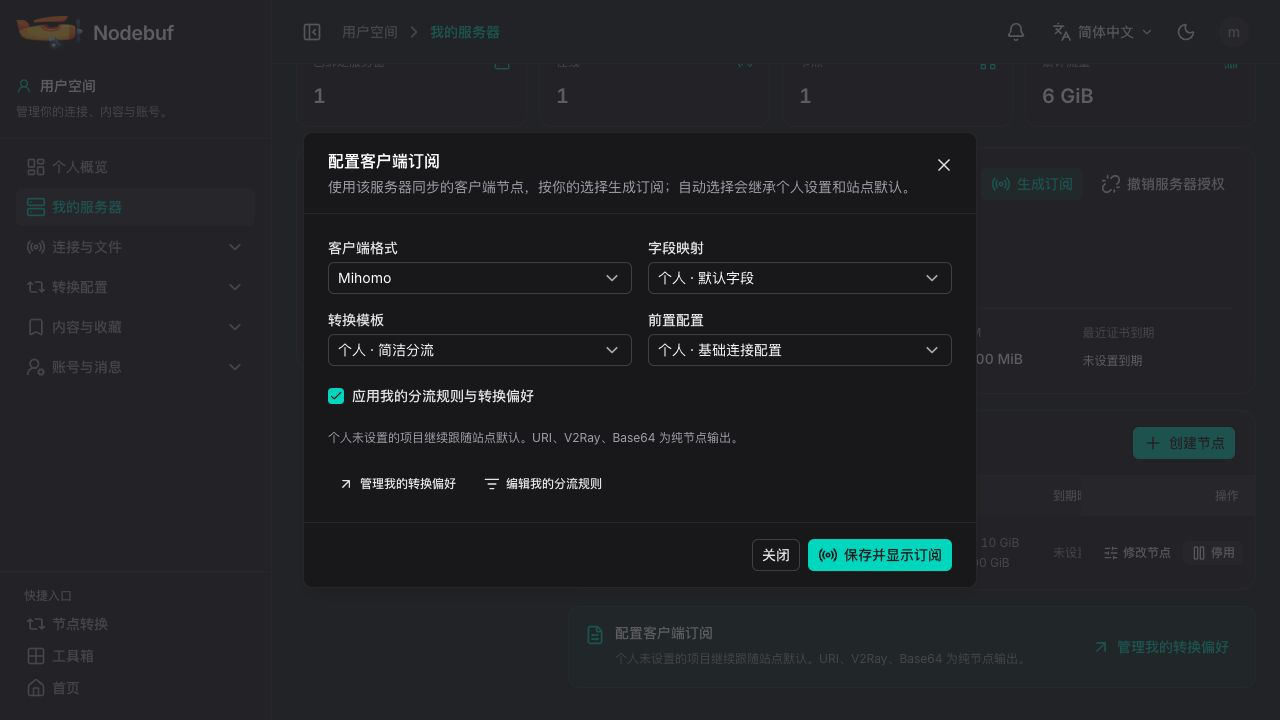
Subscription settings. Access keys are not shown in screenshots.
Automatic selection follows the website's existing precedence: an explicit selection for this subscription takes priority; otherwise personal settings are used, then site defaults, then built-in output. Available administrator-published resources, your own resources and public shared resources are selected under the usual permissions.
For example, if you already chose a Mihomo template and prefix in Conversion preferences, leave these options automatic. To use a different template for this server, select it here without changing your defaults for every tool.
Find personal rule settings in Conversion preferences, then edit and save account rules in the Clash / Mihomo workspace or sing-box workspace. Typing rules into a workspace without saving them to your account does not make them subscription rules.
URI, Base64 and V2Ray are node-only outputs and do not use full-client prefixes, policy groups or routing templates. Client support for protocols and transports differs. A target that cannot retain certificate trust or represent a preset will fail explicitly; use a complete configuration or adjust your nodes.
Saving reveals a private subscription URL. Copy it into your client's subscription manager and update it using the client's controls. Keep it out of public screenshots, support tickets and chat groups: anyone holding it can obtain node connection configuration. Rotating its key immediately invalidates the previous website URL, so update the affected clients afterwards.
To avoid serving old nodes after they stop being available, website subscriptions require a heartbeat within two minutes and a synced snapshot within ten minutes. An all-unavailable node set does not keep serving the older working configuration. A website or server outage may prevent subscription updates; it does not automatically stop the local proxy already running on your server.
7. Useful everyday commands
| Task | Command |
|---|---|
| Interactive menu / full help | nb / nb help |
| Nodes / status / panel address | nb list / nb status / nb panel |
| Add default REALITY | nb add reality --name 'My REALITY' |
| Add domain-free Hysteria2 | nb add hy2 |
| Export complete client configuration | nb export NODE_ID json |
| Enable / disable a node | nb enable NODE_ID / nb disable NODE_ID |
| Daily and monthly quotas | nb limits NODE_ID --daily 10GiB --monthly 200GiB |
| Upload and download ceilings | nb limits NODE_ID --up 10 --down 30 |
| Basic diagnostic / explicit connection test | nb diagnose NODE_ID / nb diagnose NODE_ID --network |
| Validate / restart / logs | nb check / nb restart / nb logs |
| Website status / immediate sync | nb cloud status / nb cloud sync |
| Disconnect website locally | nb unbind --yes |
| Reset panel password | nb password |
| Attempt to enable system BBR | nb bbr |
| Create / list encrypted backups | nb backups create / nb backups list |
Replace NODE_ID with an actual ID from nb list. Restarting the core or applying node changes can briefly interrupt connections, so choose a suitable moment.
BBR concerns Linux TCP congestion control and cannot promise a speed improvement. Hysteria2 and TUIC use their own UDP/QUIC congestion control. The manager checks the available algorithm, loads supported modules when needed and verifies settings. It explains missing modules, host restrictions, missing tools or parameter conflicts instead of replacing your kernel or running an unknown acceleration script.
8. Keep backups off the server too
Operations and backups can create encrypted backups, download them and configure a schedule. Keep the .nbb archive and its separate recovery key safely. A backup stored only on the same server disk is not sufficient when the server itself is lost.
Restore first shows an impact preview. Confirmation replaces managed nodes and connection parameters and can interrupt the proxy. The preview explains how existing subscriptions are handled. Keeping an old token does not make an old IP automatically redirect; preserving an address also needs a suitable domain or equivalent infrastructure.
Ordinary backups exclude the panel administrator password, website machine binding key, Telegram/Cloudflare Tokens and backup recovery key. On a replacement machine, initialize a new panel administrator, restore nodes, then reconnect the website and configure required external credentials. Treat an encrypted backup as private data too.
Common questions
The website says online, but a node cannot connect
Online means the manager can report to the website. Public inbound access to a node is a different path. Check whether the node is enabled, expired or over quota, whether the core is running, the TCP/UDP rule, and certificate trust. Use node diagnostics to narrow the problem instead of assuming every failure is a converter error.
Pairing succeeded, but subscription generation is unavailable
Confirm that subscription permission was enabled on both the website and locally. Check sync status under Website connection. Create at least one enabled, unexpired node, request immediate sync and refresh the website. Monitoring permission alone does not consent to uploading node credentials.
I am signed in to Nodebuf. Why did local public conversion ignore my template?
The local panel and website have different origins and sessions. Public conversion does not forward your browser's cookies. To use personal resources, pair your account, allow subscription sync and configure this server's subscription under My servers on the website.
I have no domain and only want one working node
Start with default REALITY. For Hysteria2 or TUIC, choose an IP certificate and import the complete client configuration. The initial panel can use the server IP and port; configure HTTPS when your setup allows it. You do not need to finish every advanced feature to begin, and the panel explains the relevant risks.
Does revoking a subscription URL stop someone using a node?
It stops future configuration downloads through that URL. It cannot erase a password or UUID already obtained. To stop actual use, disable the node or change its credentials, then update your own clients.
When reporting a problem, include the version, protocol, exact error, client and the step that failed. Do not send panel passwords, pairing codes, full subscription URLs, node URIs, private keys or backup recovery keys. Refer to the server panel entry for commands or use tool feedback for a report that is safe to make public.